
How to Restore a Laptop to Factory Settings? In this guide, I'll show you how to restore a laptop to its factory settings using the built-in recovery partition. While the example here uses Dell laptops, most modern PCs - including HP, Lenovo, Acer, and Asus—have similar recovery tools. This process reinstalls Windows and restores all factory software, drivers, and default settings.
Why Restore Your Laptop to Factory Settings?
There are several reasons to perform a factory reset:
- Your Windows operating system has become corrupted or unstable.
- You are preparing to sell or give away the laptop and want to erase personal data.
- You want to start fresh with a clean installation of Windows and remove all software clutter.
Important Warning
WARNING: Restoring your laptop to factory settings erases all data on your system drive (C:). Make sure to back up your personal files, documents, photos, and any important data before proceeding.
How to Factory Reset a Laptop
- If your laptop is running, click Start > Restart.
- As the computer restarts, repeatedly press F8 (Dell) or the key shown on-screen for your manufacturer to access the Advanced Boot Options menu.
- Select Repair Your Computer and press Enter.
- Choose your language and click Next.
- Log in as an administrative user and click OK.
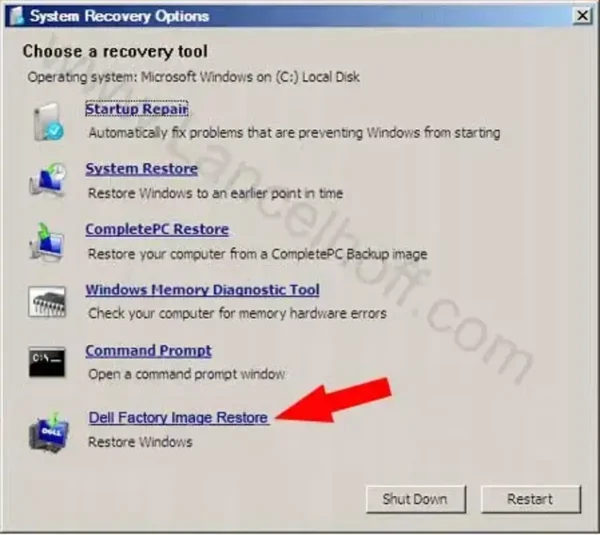
- Select Factory Image Restore (on Dell) or Recovery / Reset this PC on other brands from the system recovery menu.
- Click Next.
- Check the box that says something similar to: "Yes, reformat the hard drive and restore system software to factory condition."
- Click Next and wait while the laptop restores to its factory configuration. This process may take 30–60 minutes depending on your machine.
- When complete, click Finish and allow the computer to reboot.
After the Factory Reset
Once the process is complete, your laptop will be restored to the original factory settings:
- Windows will be freshly installed.
- All preloaded manufacturer software and drivers will be restored.
- Your personal files and any added applications will be erased.
Additional Tips
- If your laptop does not have a recovery partition, you may need to use recovery discs or a USB recovery drive provided by your manufacturer.
- For Windows 10 or 11, you can also use Settings > System > Recovery > Reset this PC to restore Windows to factory settings without a manufacturer recovery partition.
- Always backup important data before performing a reset.
Following these steps will reset your laptop to factory condition, giving you a clean, fresh start or preparing it for a new owner.