
How to Disable Balloon Tips and Remove Notifications Across All Platforms: Notifications are helpful, but they can quickly become distracting. From classic balloon tips in older Windows versions to modern toast notifications, popups can interrupt your workflow. This guide shows you how to disable, manage, or customize notifications on Windows, macOS, iOS, Android, and even your web browsers.
Easily Disable Tips & Remove Notifications
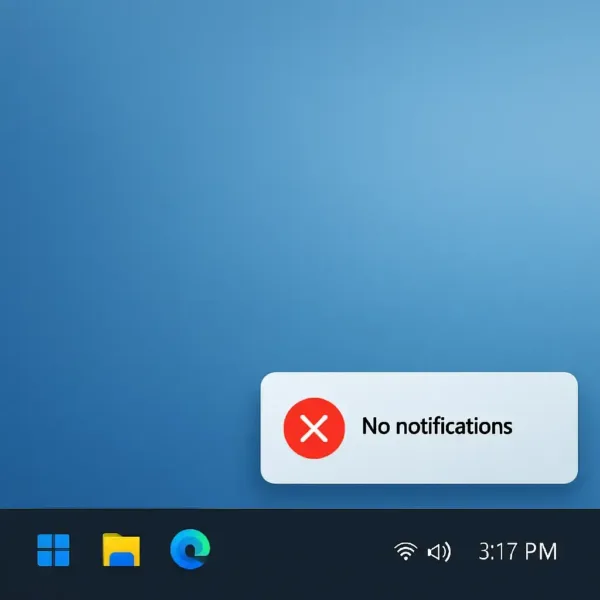
Windows
Disable Balloon Tips (Windows XP)
Important: Windows XP is no longer supported by Microsoft. Use these steps only on legacy systems.
- Click Start → Run, type
regedit, and press Enter. - Navigate to:
HKEY_CURRENT_USER\Software\Microsoft\Windows\CurrentVersion\Explorer\Advanced - Right-click → New → DWORD (32-bit) Value, name it
EnableBalloonTips - Double-click it and set its value to 0
- Click OK, close the Registry Editor, and restart your computer.
Disable Toast Notifications (Windows 10 & 11)
- Press Windows + I to open Settings.
- Go to System → Notifications.
- Toggle off Get notifications from apps and other senders to disable all notifications.
- Scroll down to manage notifications per app.
- Use Focus Assist (Windows 10) or Do Not Disturb (Windows 11) to suppress notifications during certain times or fullscreen apps.
Additional Windows Notification Tips
- Disable notification sounds separately if visual alerts are enough.
- Hide banners while keeping notifications in the Action Center.
- Review startup apps to reduce unnecessary background notifications.
macOS
- Open System Settings (or System Preferences on older macOS).
- Select Notifications.
- Toggle off Allow Notifications globally or per app.
- Enable Focus Mode / Do Not Disturb for scheduled or on-demand silencing.
Browser Notifications on macOS
- Safari: Safari → Preferences → Websites → Notifications → Deny unwanted sites.
iOS (iPhone & iPad)
- Open Settings → Notifications.
- Select an app to manage.
- Toggle off Allow Notifications or customize Lock Screen, Notification Center, and Banners.
- Use Focus / Do Not Disturb to silence notifications temporarily.
- Optional: Use Scheduled Summary to collect non-urgent notifications in one summary.
Android
- Open Settings → Apps → Notifications.
- Select an app to manage.
- Toggle off notifications completely or adjust per category (sound, pop-up, lock screen).
- Use Do Not Disturb or Focus Mode to silence notifications during work, sleep, or gaming.
- Optional: Reduce background apps to limit unnecessary alerts.
Web Browsers (Chrome, Edge, Firefox)
Chrome & Edge
- Open Settings → Privacy and Security → Site Settings → Notifications.
- Block unwanted sites or disable Ask before sending.
- Optional: Use extensions to suppress repetitive alerts.
Firefox
- Open Options → Privacy & Security → Permissions → Notifications.
- Block sites or adjust Ask to allow behavior.
General Notification Tips Across Platforms
- Mute notification sounds if popups are useful but audio is distracting.
- Use focus, do not disturb, or scheduled quiet modes for periods of concentration.
- Reduce background apps to minimize unnecessary notifications.
- Review notifications periodically to declutter your device.
Frequently Asked Questions
Can I completely turn off notifications on all devices?
Yes. Each platform allows global notification suppression, though some critical system alerts may still appear.
Will disabling notifications affect app functionality?
No, most apps will still work, but you may miss alerts like reminders, messages, or updates.
Can I customize notifications instead of disabling them?
Absolutely. Modern systems allow per app control of banners, sounds, badges, and lock screen behavior.
What is Focus Assist / Do Not Disturb?
It is a feature that temporarily silences notifications on Windows, macOS, iOS, and Android to prevent interruptions.
Are browser notifications controlled separately?
Yes. Browsers like Chrome, Edge, and Firefox have their own notification settings independent of OS notifications.
Conclusion
Notifications can be helpful, but they shouldn't interrupt your focus. On Windows, macOS, iOS, Android, and web browsers, you can disable tips or customize alerts according to your needs. Use Focus / Do Not Disturb features, fine tune application specific notifications, and mute sounds to create a distraction free environment while staying informed only when it matters.