
How to Convert DOC to PDF Files Using PDFCreator? If you need to convert Word documents into PDF files offline, PDFCreator is a free and reliable tool that works on modern Windows versions, including Windows 10 and 11. It acts like a virtual printer, letting you “print” almost any document to a PDF file.
What is PDFCreator?
PDFCreator is an open-source PDF creation tool that includes a virtual PDF printer. This means you can create PDFs from virtually any Windows application that supports printing, such as Microsoft Word, Excel, or even web browsers. It also supports features like:
- Adding metadata (author, title)
- Applying watermarks or stamps
- Merging multiple documents into a single PDF
Step 1: Download and Install PDFCreator
- Go to the official PDFCreator site: PDFCreator
- Click Download PDFCreator and follow the installer instructions.
- During installation, uncheck any optional software offers to avoid unwanted programs.
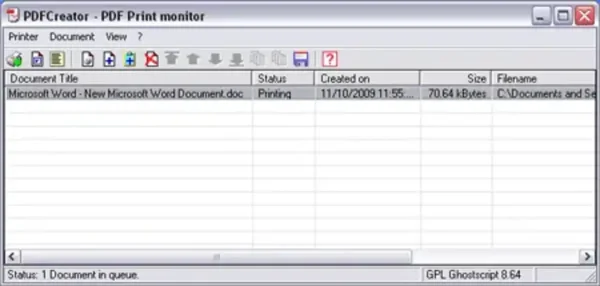
Step 2: Create a PDF from a DOC File Using PDFCreator
- Open PDFCreator from the Start menu.
- Drag and drop your DOC or DOCX file into the PDFCreator window.
- Enter optional file information like Title, Author, and Keywords.
- Click Save, choose a destination, and your PDF will be created.
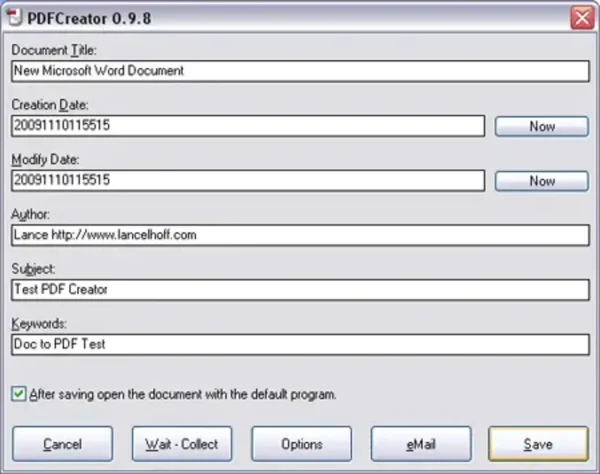
Tip: You can also batch-convert multiple files at once by dragging several documents together.
Step 3: Create a PDF Using the PDF Print Driver
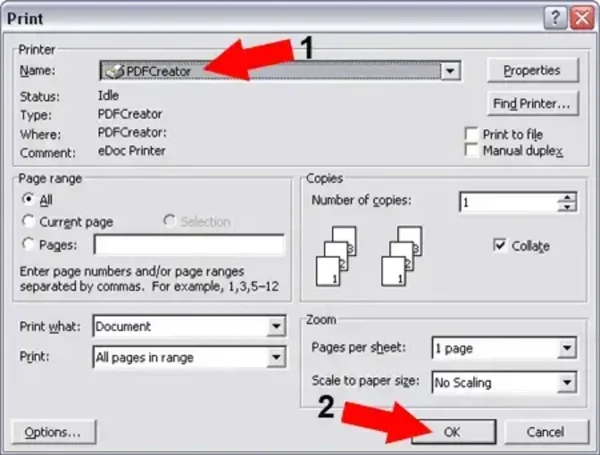
- Open Microsoft Word (or any program that supports printing).
- Go to File > Print.
- Select PDFCreator as your printer.
- Click Print. PDFCreator will open a window allowing you to save your document as a PDF.
- Enter metadata, apply watermarks if desired, and click Save.
Step 4: Add Watermarks or Stamps (Optional)
- In PDFCreator, go to Profile Settings > Document.
- Find the Stamp/Watermark section.
- Add your custom text (e.g., “Created by YourName”) and apply it to your PDFs.
Step 5: Tips and Alternatives
- Batch Conversion: PDFCreator supports combining multiple DOCs into a single PDF.
- Security: Avoid installing bundled software during setup.
- Alternative Built-in Option: On Windows 10/11, you can also use Microsoft Print to PDF, which doesn’t require extra software, but it lacks advanced options like watermarks.
- File Organization: Use descriptive names for your PDFs to keep your files organized and searchable.
Final Thoughts
PDFCreator is a flexible, free, and modern solution for converting Word documents to PDFs offline. Whether you need simple PDF creation or advanced features like watermarks and batch conversion, PDFCreator has you covered.
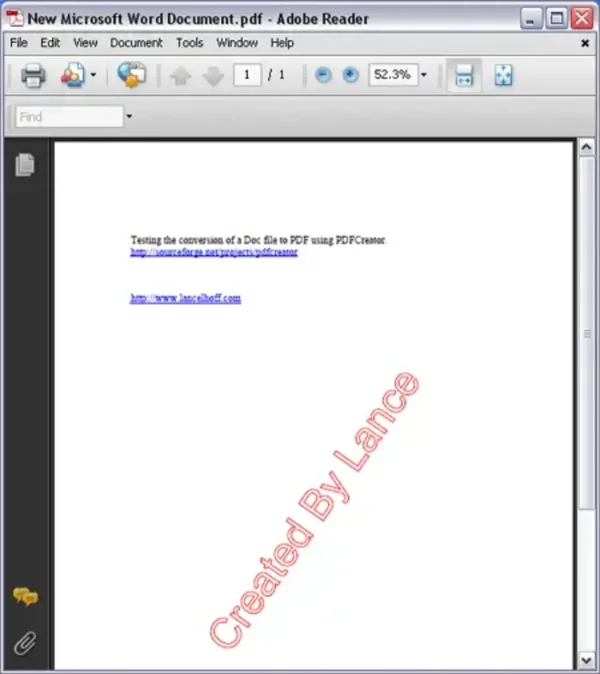
With this method, you can safely create PDFs without relying on online services, keeping your documents private and secure. Start converting your DOC files to PDFs today and take control of your document workflow!