
How to Pin Computer to Taskbar in Windows 11/10/8/7. Newer versions of Windows offer a feature called Pin to Taskbar that allows you to drag and drop or right click items and Pin them to the Windows Taskbar.
However, some items, particularly those that are already a part of another pinned item, cannot be pinned. For example, since Computer is a part of Windows Explorer, Computer will not Pin. To fix this, we simply need to create a new shortcut that can be pinned.
How to Pin Computer to the Windows Taskbar
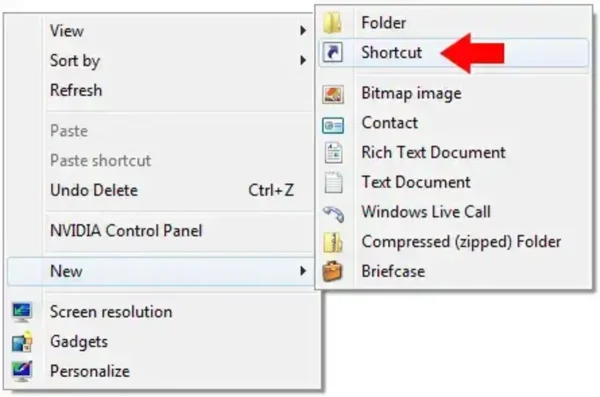
- Right Click on your Desktop and Select New > Shortcut
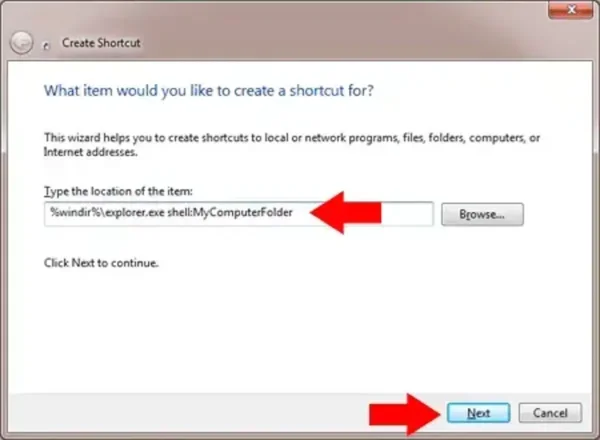
- Type %windir%explorer.exe shell:MyComputerFolder for location and then click Next
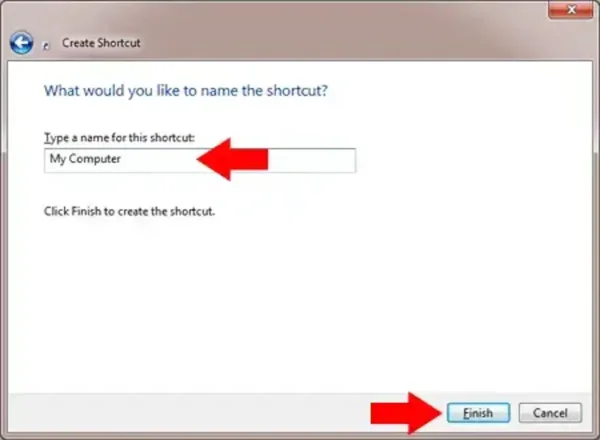
- Type My Computer for shortcut name and click Finish
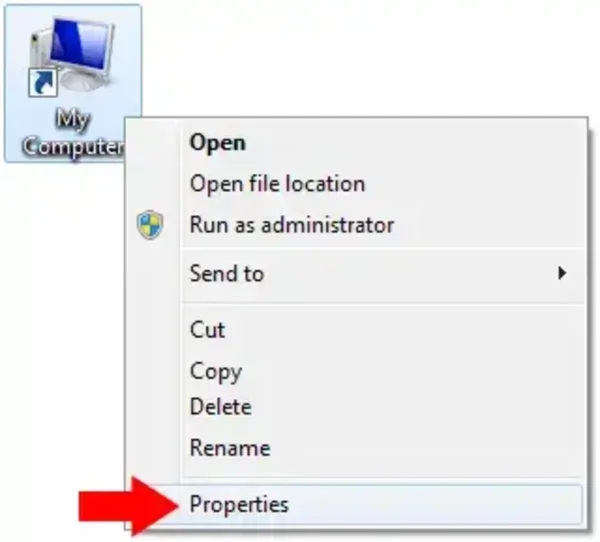
- Next, from your Desktop, Right Click your new My Computer Shortcut and select Properties
- Click Change Icon
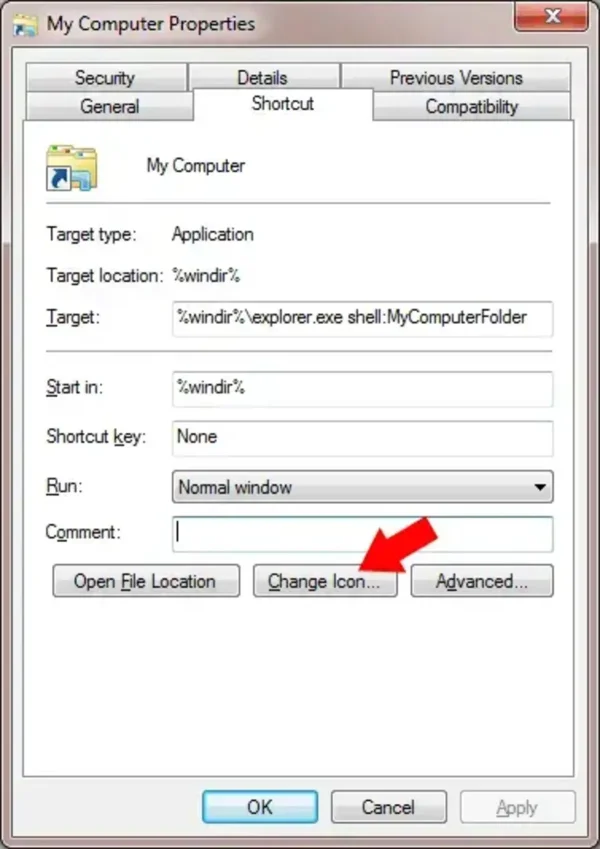
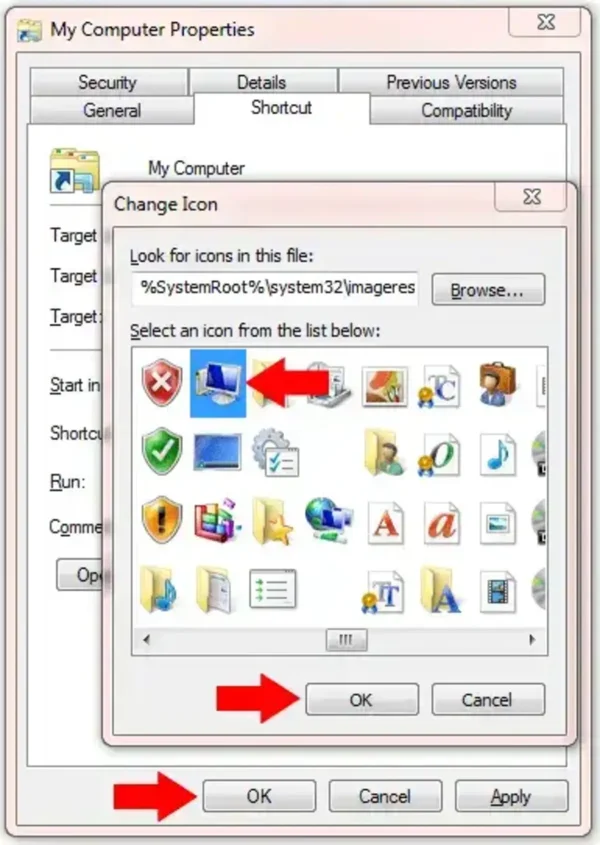
- Under Look for Icons in this file, type: %SystemRoot%system32imageres.dll and click OK
- Next, Select an Icon to use for My Computer and click OK, then click OK again to exit
- Next, simply drag and drop the My Computer shortcut you just created to the Windows Taskbar to (Pin my Computer to the Taskbar)

That's all there is to it. You can use the same procedure to Pin any Item to the Windows Taskbar.
You can delete the shortcuts you create from the desktop once they have been pinned.
I recommend checking out the Windows Shell Commands List if your looking to create other shortcuts to Pin to the Windows Taskbar,