
Photoshop freezes? If you've encountered the frustrating issue of Adobe Photoshop freezing of lagging when trying to open an existing file or create a new one, you're not alone. This problem can affect various versions of Photoshop, including CS2, CS3, and even the latest versions.
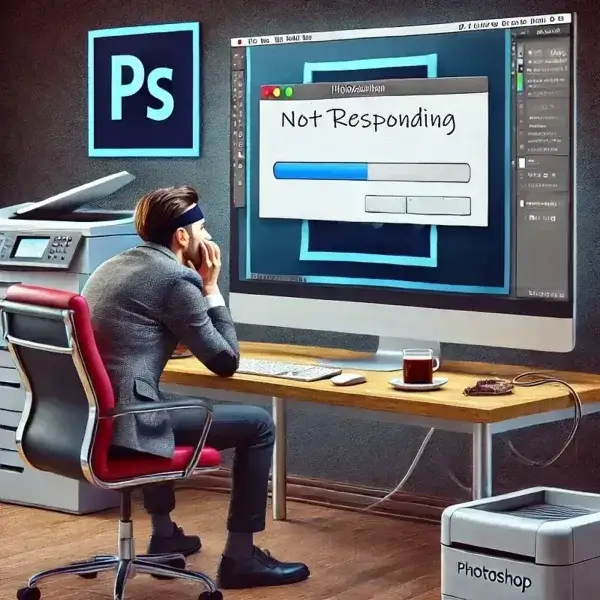
When this happens, one might notice Photoshop lagging, appearing to take an unusually long time to open a file, while other times, it might appear Photoshop locked up completely, needing to be closed through Ctrl + Alt + Del in the Windows Task Manager.
Causes of Photoshop Freezing or Lagging
This particular issue can arise due to several factors, including:
- Network printers or drives being accessed by Photoshop
- Outdated or incompatible graphics drivers
- Corrupted Photoshop preferences
- Large or complex files
- Insufficient system resources (RAM or CPU usage)
- Third party plugins causing conflicts
How to Fix Photoshop Lag, Freezing and Lock ups
Here are some solutions to help you resolve Photoshop Lag, Freezing and Lock ups:
Remove or Disable Network Printers
In some cases, Photoshop tries to access the default printer, especially if it's networked, which can cause delays or freezing. To fix this:
- Go to Control Panel > Devices and Printers.
- Right-click on the network printer and select Remove.
- Try opening Photoshop again and check if the issue persists.
Alternatively, you can set a local printer as the default to avoid issues with network printers.
Update Your Graphics Driver
Outdated or incompatible graphics drivers can cause Photoshop to freeze. Make sure your graphics driver is up to date:
- Press Windows + X and select Device Manager.
- Expand the Display Adapters section.
- Right-click on your graphics card and select Update driver.
- Follow the prompts to check for driver updates.
Reset Photoshop Preferences
Sometimes, corrupted preferences can cause Photoshop to misbehave. You can reset preferences by doing the following:
- Press and hold Ctrl + Alt + Shift while starting Photoshop.
- A prompt will appear asking if you want to delete the settings file. Click Yes.
Note that resetting preferences will revert Photoshop to its default settings.
Move Files to Local Storage
Opening files from a network drive or shared folder can also slow down Photoshop. Make sure to move the files you're working on to your local drive to avoid lag or freezing.
Disable Problematic Plugins
Third party plugins can sometimes conflict with Photoshop. Disable plugins by following these steps:
- Go to Edit > Preferences > Plug-ins.
- Uncheck Enable Generator to temporarily disable plugins.
- Restart Photoshop and see if the issue persists.
Additional Notes Regarding Photoshop Freezes
If none of the above fixes work, consider updating Photoshop to the latest version or running a full system check to ensure your hardware isn't causing the issue.
By following these steps, you should be able to resolve Photoshop freezing issues and improve its overall performance.